Open the game project
Select Play Now to open the external project in a new tab. Check its own page for the latest launch instructions.
BROWSER GAME GUIDE
Want to try Skate 3 in your browser? Use this guide to access the fan project, understand what you may need, and troubleshoot common startup issues.
Independent fan-project guide. Not affiliated with or endorsed by Electronic Arts.
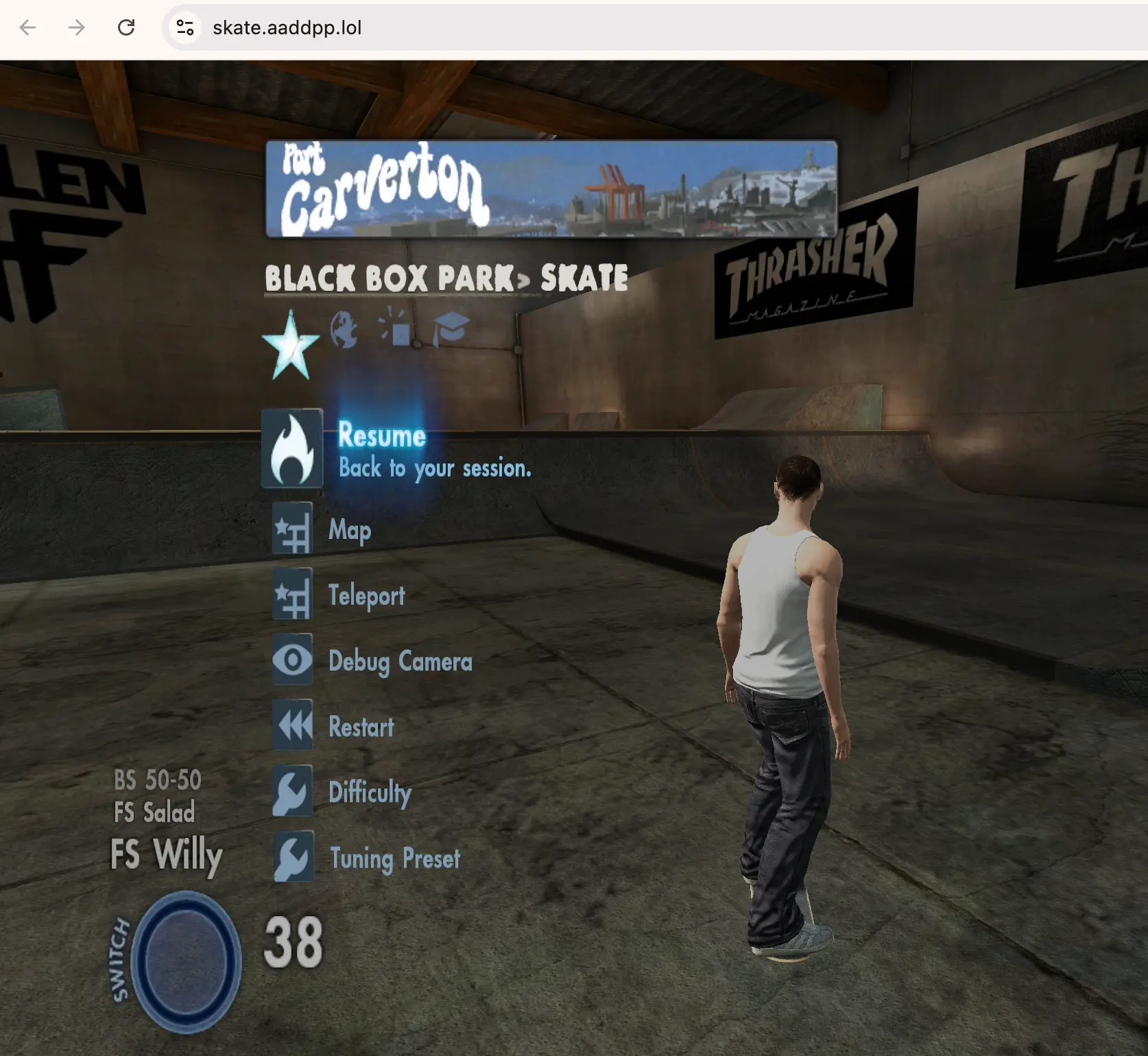
Use the Play Now link to visit the external project.
Read the project's instructions before starting.
Use the checks below if the game does not load.
GETTING STARTED
Use the project’s own menus and control mapping. The keyboard layout below is based on the controls screen shown in the project.
Select Play Now to open the external project in a new tab. Check its own page for the latest launch instructions.
Read any notes about supported browsers, graphics features, and game-data requirements before troubleshooting.
Use the control guide provided by the project. Avoid relying on controls from the original console release unless the project confirms they match.
NO CONTROLLER? NO PROBLEM
The browser project maps keyboard keys to a virtual Xbox-style controller. These are the mappings shown in its Controls menu; some button actions are not labeled there, so check the in-game menu if you need their exact functions.
| Keyboard | Mapped control | Action shown in the menu |
|---|---|---|
| W A S D | Left stick | Steer, push off, crouch |
| ↑ ← ↓ → | Right stick | Flick It tricks (or Trackpad Mode) |
| Space | A | Push |
| E | B | Not specified in the menu |
| Q | X | Not specified in the menu |
| R | Y | Not specified in the menu |
| Z / X | LB / RB | Not specified in the menu |
| Shift / C | LT / RT | Grabs |
| V / B | L3 / R3 | Not specified in the menu |
| I J K L | D-pad | Not specified in the menu |
| Esc | Start | Pause menu |
| Tab | Back | Back |
In the game, open Player → Trackpad Mode. The mouse or trackpad then acts like the right stick. Click the game to lock the pointer; press Esc to release it. For an ollie, move down and then quickly up. For flip tricks, flick sideways or diagonally. The menu suggests trying a higher level if flicks feel too short.
F8 opens the debug camera, and T drops your skater at the camera position, according to the project’s Controls menu. These appear to be debug functions rather than everyday gameplay controls.
Controls are documented from the project’s displayed menu and may change. If a key seems unresponsive, click the game area and check the current in-game Controls menu.
PHONE & TABLET
The project includes a Mobile Mode option intended for phones and tablets. It adjusts how the browser project runs, but the setting alone does not guarantee that every device can play smoothly or that touchscreen controls are available.
From the project’s main menu, go to Graphics.
Look for the Mobile Mode setting and enable it if it is available.
Return to the game and check whether it loads and responds to your device’s available input method.
BEFORE YOU START
This is a third-party fan project, so the exact requirements depend on its implementation. Check the project's own notices first.
Try a current version of Chrome, Edge, or another browser supported by the project.
If the project needs advanced graphics features, confirm your browser and device support them.
Some fan projects may require user-provided data or additional setup. Follow the project's terms and use only game data you are legally entitled to use.
QUICK FIXES
Try these general browser checks. They may not resolve issues caused by the external project itself.
Reload the project, update your browser, and check whether the project lists graphics or device requirements.
Wait briefly, then retry. Check the project's status or notices before changing browser settings.
Click inside the game area if requested, then consult the project's current control instructions.
GOOD TO KNOW
No. This is an independent guide to a third-party fan project. It is not affiliated with or endorsed by Electronic Arts.
No. The Play Now button opens the external project in a new tab. Availability and compatibility are controlled by that project.
Check the external project's current terms and requirements. We cannot guarantee its current availability, cost, or setup requirements.
Open the project's Main Menu, choose Graphics, and look for Mobile Mode. The menu describes lighter graphics, no background downloads, and a warning before large cities. This setting is intended to help on phones and tablets, but it does not guarantee compatibility or touchscreen controls.
The project has a Mobile Mode setting, but that alone does not confirm that touchscreen controls are available. Test the game on your device and check the project's current instructions.
Yes, the project's Controls menu lists keyboard mappings, including WASD for the left stick, the arrow keys for the right stick, and Space for Push. See the keyboard controls table above for the full displayed mapping.
No. This guide links to an external project and does not host the game or its files.
READY TO TRY?
Review its instructions and requirements before launching.